
Adding items to the status bar
The status bar is located at the bottom of the Office 2019 environment. It displays information about the current file you are working on and provides quick access to some tasks.
ADVERTISEMENT
Microsoft Word, sometimes called Winword, MS Word, or Word, is a word processor published by Microsoft.
It is one of the office productivity applications included in the Microsoft Office suite.
Microsoft Word allows you to create professional quality documents, reports, letters and resumes.
Unlike plain text editors, Microsoft Word has features such as spell checking, grammar checking, text and font formatting, HTML support, image support, and advanced page layout.

The status bar is located at the bottom of the Office 2019 environment. It displays information about the current file you are working on and provides quick access to some tasks.

The Microsoft Office Backstage view may appear when you start a Microsoft Office program or click the File Tab. Whether you need to create new files, open existing files, print, save, or change settings, you can do it in Backstage. When you first launch Microsoft Office 2010, 2013, 2016, or 2019, the Backstage view, the Start page, is displayed. Create new file To create a …

Pressing the Alt key on your keyboard grants you access to the shortcut keys available for each of the tabs. If you look at the tab shortcuts available (see the following screenshot), you will see that the Insert tab shows N as the shortcut key:

Fortunately, Microsoft Word provides a handy feature known as “Clear All Formatting or Reset Document,” which allows you to reset the text to its default style, removing any unwanted formatting effortlessly. In this tutorial, we will delve into this feature, exploring how it works and why it is essential for any Word user. Imagine you …

Changing The Text Case This tutorial will uncover Microsoft Word Change cases like Upper Case, Lower Case, Sentence Case, Capitalize Each Word Case, and Toggle Case Options. In Microsoft Word, you can easily change the text case of your selected text or an entire paragraph using different options. Here’s how to do it: Select Your …

Introduction When it comes to organizing information in your documents, bulleted lists are a powerful tool. They help break down complex ideas into digestible points, making content more reader-friendly. Creating a Basic Bulleted List To create a basic bulleted list in Microsoft Word:
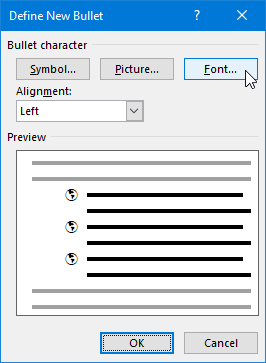
After a symbol has been applied to text in a document, you might find that the symbol is too small to be seen or not in alignment with the adjacent text.
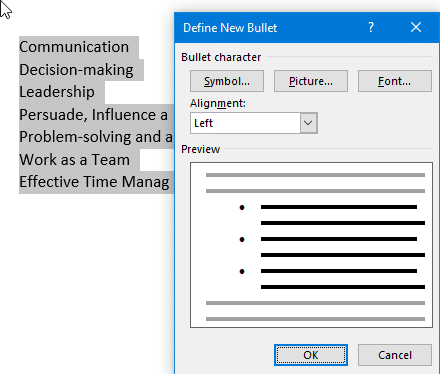
Defining a New Bullet Symbol Let’s see how we can change the appearance of the bullet, as follows: For illustration purposes, we have used Webdings as our bullet font in the previous screenshot.

There are various ways to set up a bulleted or numbered list, either by typing the text first and then converting the list into a specific list type or by choosing the list type first and then beginning typing.

Microsfot word Left, Right, Center, and Justify text alignment. The alignment options are located under the Paragraph group, under the Home Tab as shown. After applying each of the alignment types, you will see the following result: Left Alignment (By Default) Center Alignment Right Alignment Justify Alignment

Microsoft Word provides numerous options to customize the appearance of your text, allowing you to create visually appealing and professional-looking documents. One of the most powerful tools for text formatting is the Font Dialog Box or Font Attributes. This feature enables you to modify font styles, sizes, colors, and effects, giving you complete control over …

When working on a document, you may find yourself wanting to replicate specific formatting styles to maintain consistency. The ability to copy multiple formats in Microsoft Word can save time and effort, especially when dealing with lengthy documents. In this comprehensive guide, we will explore how to duplicate formats and streamline your document creation process …

Font Type Font Size Bold, Italic, Underline When you observe that a formatting control (such as bold, italic, or underline) appears selected, it indicates that the option is already active on the chosen text or paragraphs in the document To remove the formatting, simply select the paragraph or text that has the formatting applied to …

Introduction Microsoft Word is a versatile tool that goes beyond basic text editing. Turn ordinary documents into visually stunning works of art. In this step-by-step guide, we’ll walk you through the process of adding text effects to your Microsoft Word documents, unlocking your creative potential, and making your content stand out. The text effects and …

To allow more space to work with documents, simply fold away or minimize the ribbon. This can be achieved in more than one way:
We use the ruler bars (vertical and horizontal) in Word 2019 to measure and set the distance between tabs, margins, the page layout, and the header and footer distances.

Among these features are tabs and groups, which allow you to organize your documents and streamline your workflow.

In today’s fast-paced digital world, efficient document management and productivity are crucial.

The Microsoft Word title bar is located at the top of the application window and provides users with essential information and controls.
Word is a powerful tool that can be used to create a variety of documents, including letters, reports, presentations, and more.

If you frequently create or edit Word documents, take the time to learn MS Word keyboard shortcuts. Below, we’ll show you some of the best. As a bonus, many of these shortcuts also work in other Microsoft Office applications such as Excel and PowerPoint.
Although this shortcuts tutorial is primarily aimed at Windows users
